


BLACKPIQ / POST-QUANTUM IPsec

Post-quantum IPsec.
Locked to the port.

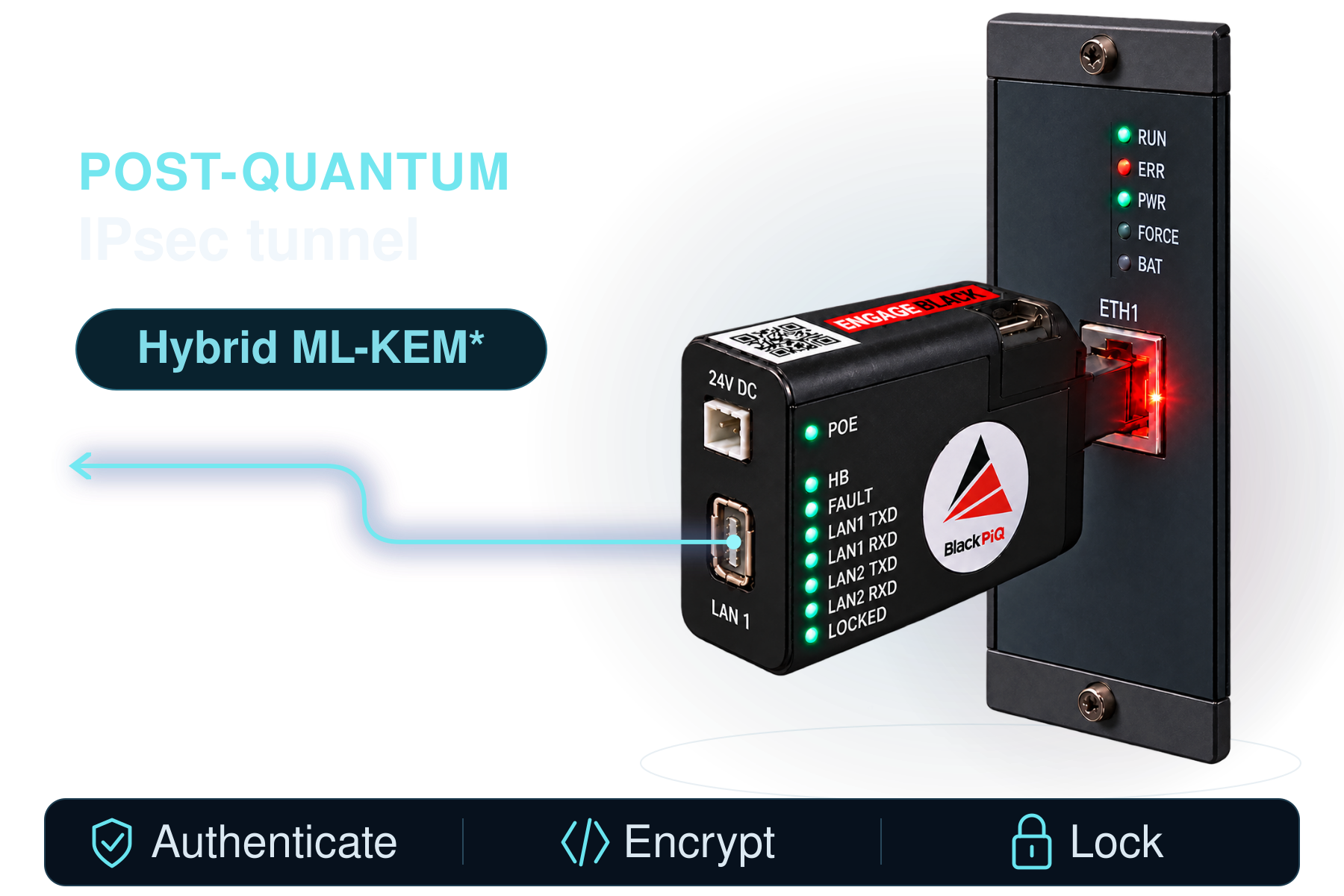
Protect industrial Ethernet with a post-quantum IPsec tunnel using optional hybrid ML-KEM key establishment, plus physical locking at the controller.
Hybrid ML-KEM / Encrypted IPsec / Port locking
*Optional hybrid ML-KEM-768/1024 in Standard Mode. Both endpoints must support and enable the selected profile.
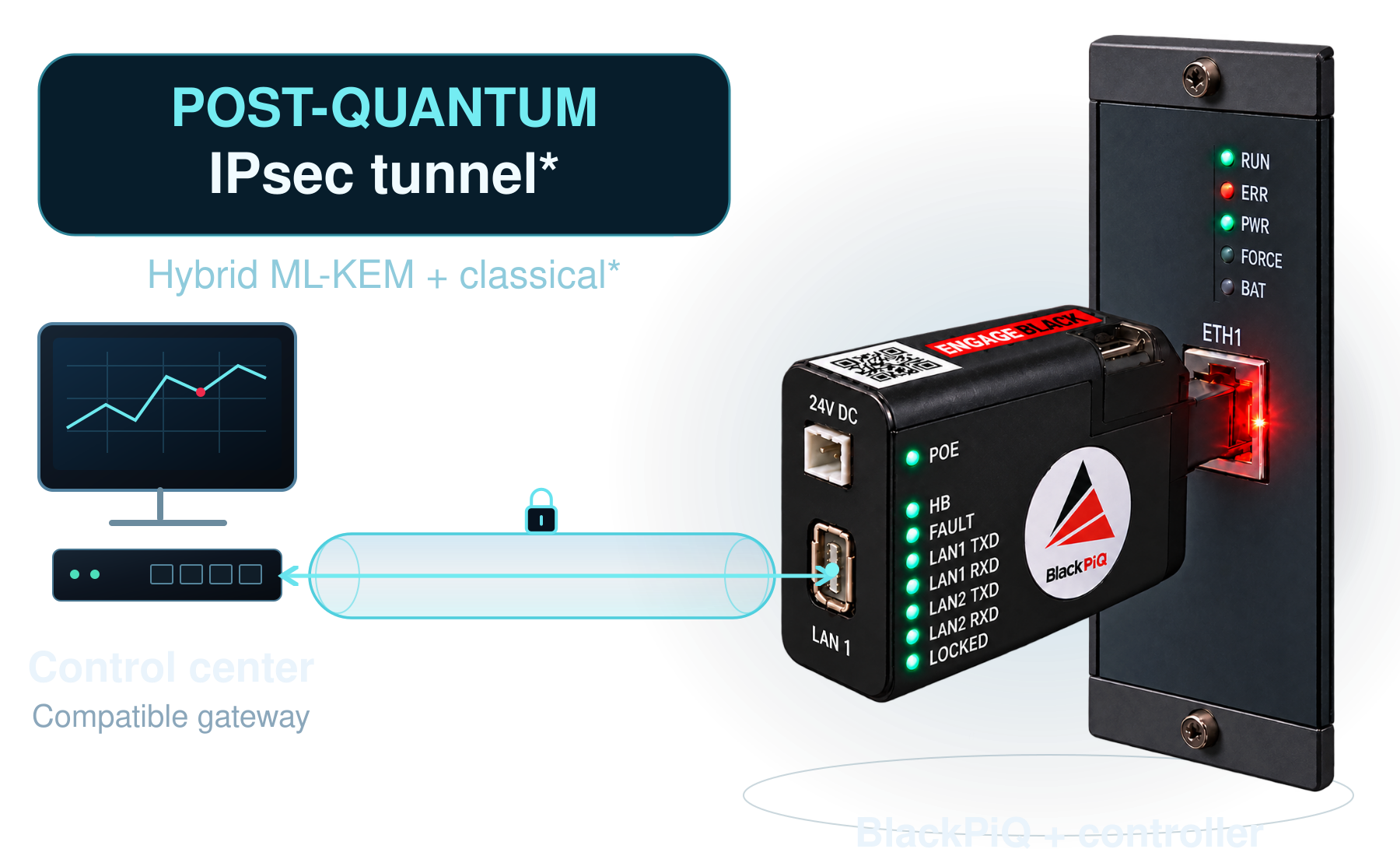
The supplied BlackPiQ product photo shows the device physically secured to the controller. A highlighted post-quantum IPsec tunnel connects a compatible control-center gateway to BlackPiQ, with optional hybrid ML-KEM and classical key establishment.
BLACKEDGE / SECURE REMOTE CONSOLE ACCESS

Remote access.
Physical control.

Connect authorized operators to critical RS232 consoles with SSH or HTTPS, strong authentication and physical port security.
SSH & HTTPS / MFA & AAA / Tamper alerts
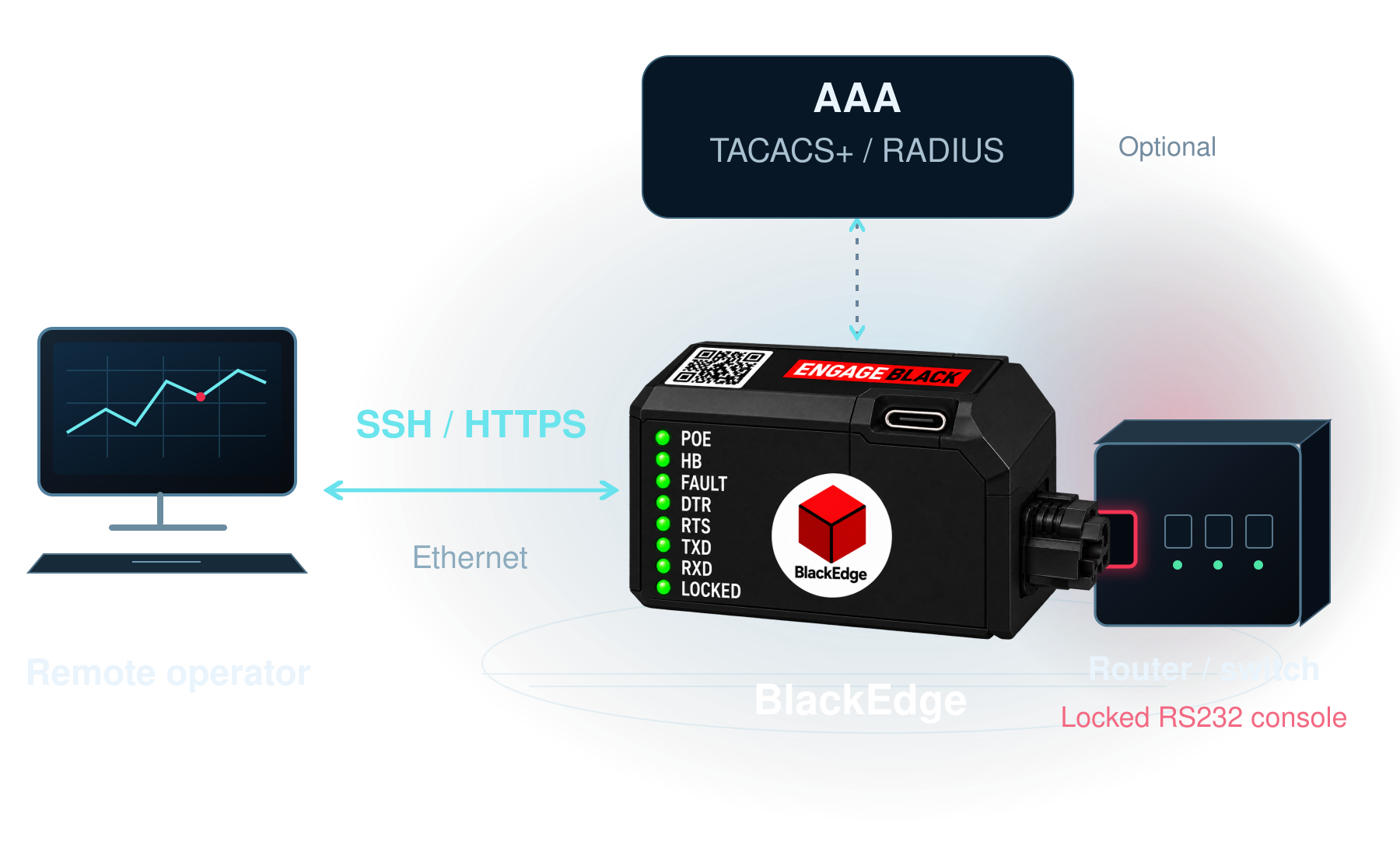
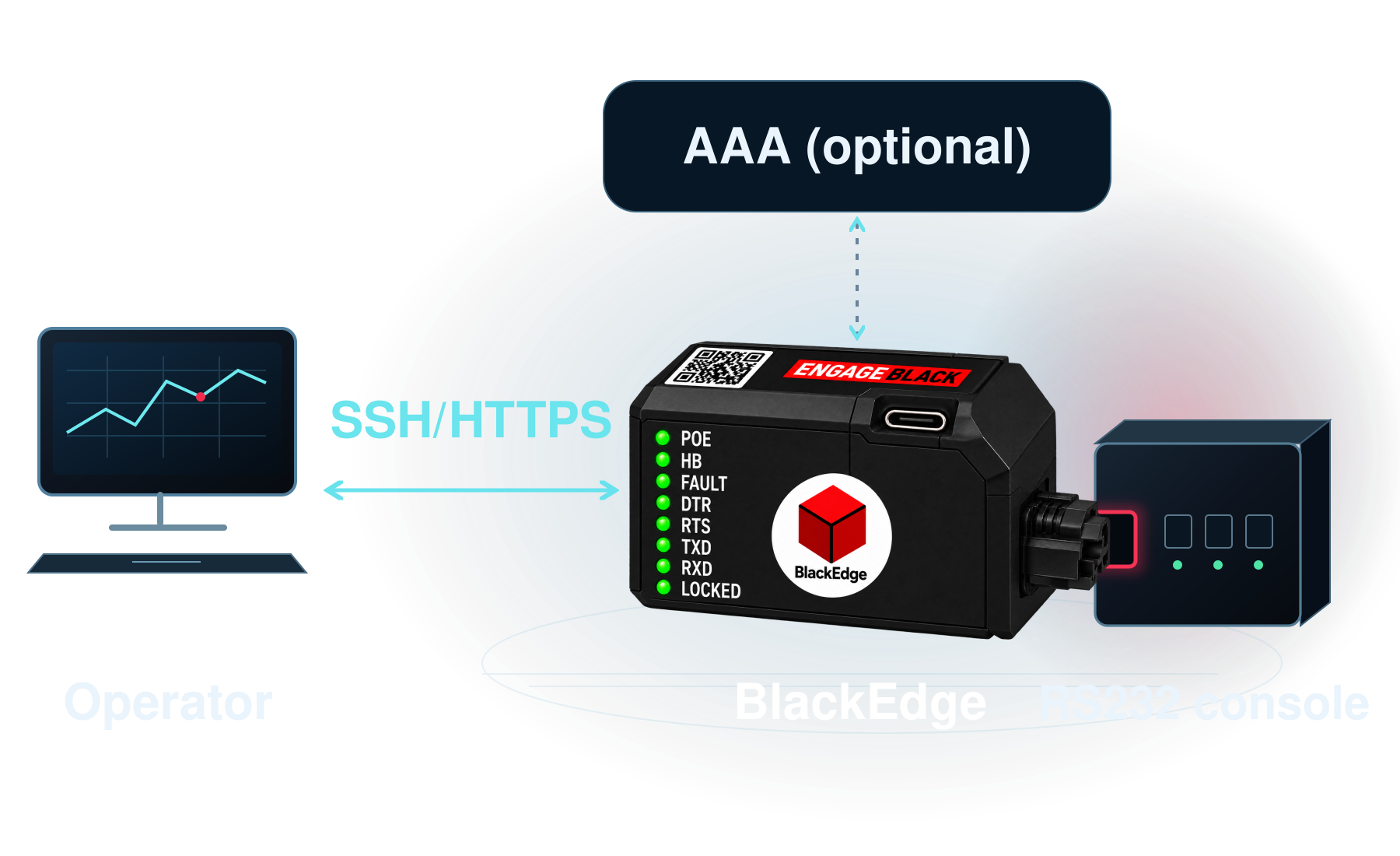
Simplified BlackEdge diagram: remote operator connects by SSH or HTTPS over Ethernet to BlackEdge, physically locked to a router or switch RS232 console. Optional TACACS+ or RADIUS AAA is a separate side connection.
BLACKVAULT HSMs / HARDWARE KEY PROTECTION

Protect the keys.
Keep control.

Generate, safeguard and manage cryptographic keys in protected hardware for enterprise applications and critical infrastructure.
Key generation / Tamper response / Access control
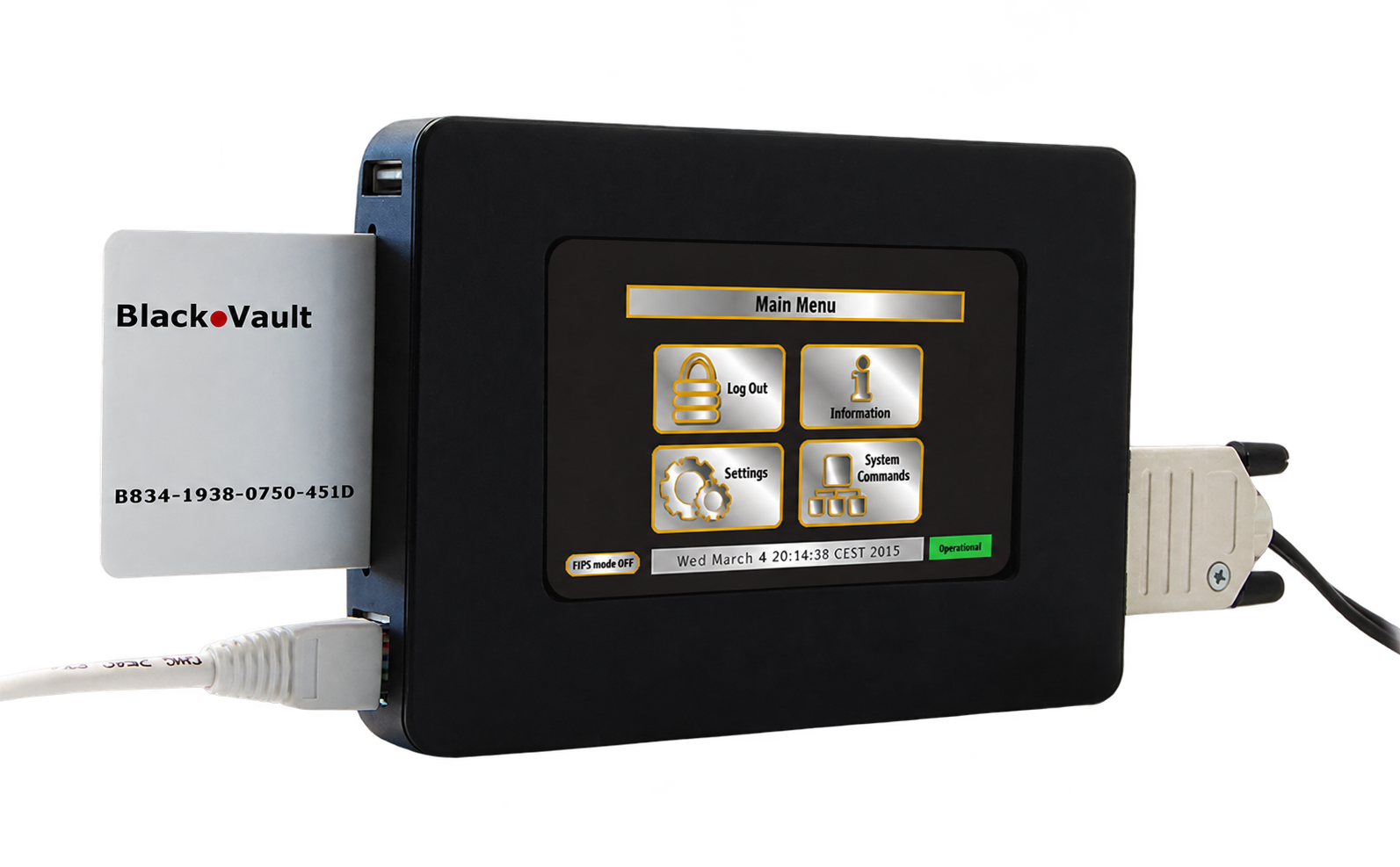
BlackVault HSM touchscreen model with inserted smart card, shown as the example for the BlackVault HSM family.
BLACKVAULT TOUCHSCREEN
HSM / HSM.TAC / HSM.RAS
BLACKSER AES / SERIAL DATA ENCRYPTION

Encrypt serial data.
Protect operations.

Add AES-256 protection to existing RS232 communications serving RTUs, PLCs, meters and protective relays.
RS232 / Modbus · DNP · IEC101 / Inline encryption
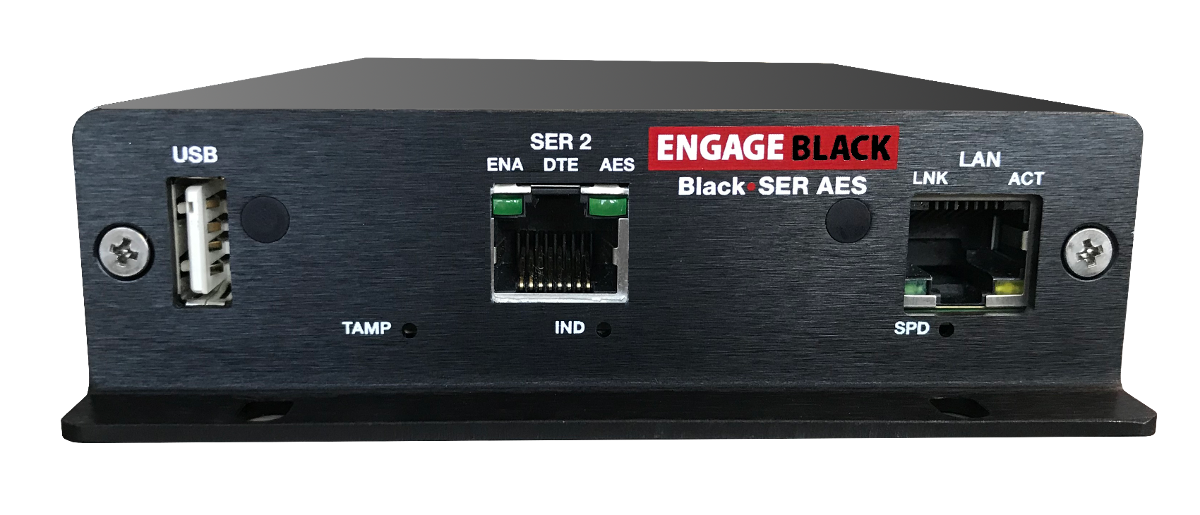
BlackSER AES inline RS232 serial data encryptor, front view.
AES-256
SERIAL DATA PROTECTION
RS232
EXISTING SERIAL ASSETS
INDUSTRIAL CONTROL SYSTEM PROTECTION

Critical control.
Post-quantum IPsec.

Protect PLCs, RTUs and IEDs with an optional hybrid post-quantum IPsec tunnel, physically locked to the industrial controller by BlackPiQ.
Hybrid ML-KEM / PLCs · RTUs · IEDs / Port locking
*Optional hybrid ML-KEM-768/1024 in Standard Mode. Both endpoints must support and enable the selected profile.
The supplied BlackPiQ and controller photo with a highlighted post-quantum IPsec tunnel terminating at BlackPiQ and physical protection at the controller Ethernet port. Hybrid ML-KEM key establishment is optional and requires a compatible configuration at both endpoints.
previous arrowprevious arrow
next arrownext arrow
PlayPause
Slider

Eclipse


A BlackVault can be used to sign projects developed within an Eclipse environment. This example is how to sign a Java build from a client machine that has already been configured to use the Black Vault libraries.

Important: Verify that the pkcs.dat file is in the Eclipse project file. If it is not present, signing fails. Make sure that the pkcs.dat file contains the correct IP address and TLS port for the Black Vault.

  1. Log into the Black Vault as User operator.
     
  2. Verify that a key exists. From the Home screen > Information > List Keys
     
  3. If no key is available, A new key needs to be generated on the Black Vault with the Java keytool.
    1. Open a command prompt window.
    2. Use the following command:

keytool -genkeypair -keystore NONE -storepass 2222 -storetype PKCS11 -alias “RSAkey” -keyalg “RSA” -keysize “2048” -dsname “CN=Bob Joe, OU=Development, O=Engage Communication Inc., L=Aptos, S=California, C=US”
 

  1. Create a file called build.xml with the following information; and substitute attributes as appropriate.

<?xml version="1.0" encoding="UTF-8" standalone="no"?>
<project default="create_run_jar" name="Create Runnable Jar for Project Hello">
    <!--this file was created by Eclipse Runnable JAR Export Wizard-->
    <!--ANT 1.7 is required                                        -->
    <target name="create_run_jar">
        <jar destfile="/home/user/Desktop/Hello.jar" filesetmanifest="mergewithoutmain">
            <manifest>
                <attribute name="Main-Class" value="Hello"/>
                <attribute name="Class-Path" value="."/>
            </manifest>
            <fileset dir="/home/user/workspace/Hello/bin"/>
        </jar>
        <signjar jar="/home/user/Desktop/Hello.jar" alias="RSAKey" keystore ="NONE" storetype="PKCS11" storepass="2222"/> 
        <java jar="/home/user/Desktop/Hello.jar" fork="true"/>
    </target>
</project>

  1. Either open an existing project, or create a new project
     
  2. Click the dropdown menu next to the custom builds button. Select External Tools Configurations.


  1. Right-click Ant Build, and then select New.


  1. In the buildfile location field, click browse filesystem for build file you just created (build.xml)
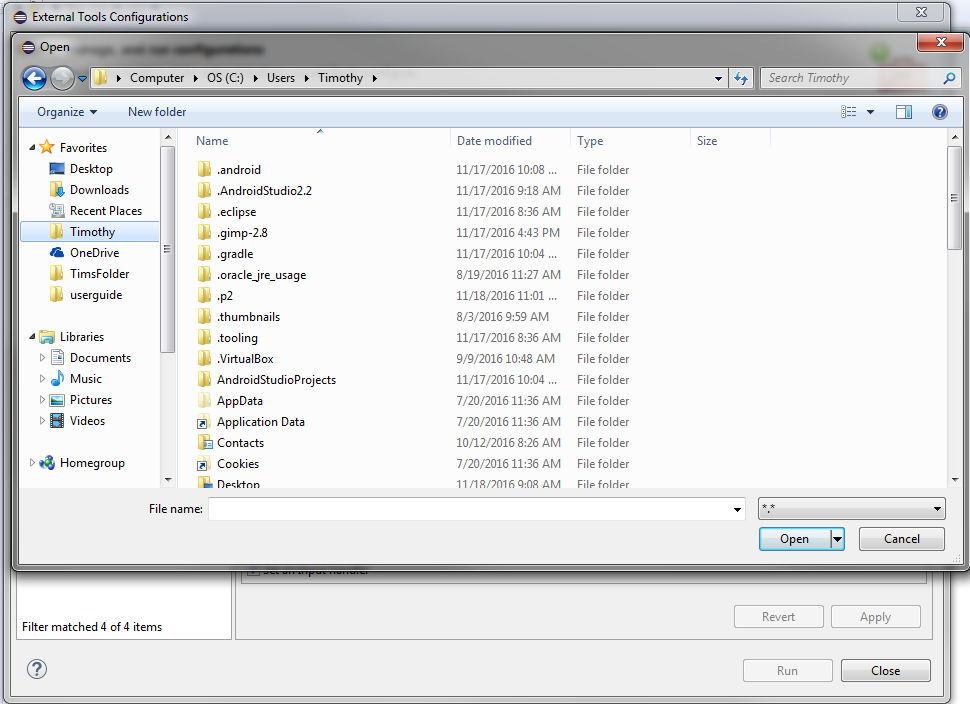

     
  2. In the base directory location field, click browse workspace and selcet the project folder (this is where pkcs.dat should live)
     
 
  1. Verify that the signing happened correctly. From a command prompt window, enter:

    jarsigner -verify -verbose -certs <jarfilename>.jar
     
    1. If it is successful it will give the certificates used in signing the jar. It will also at the end state:
      “jar verified”
       
    2. If it is unsuccessful the command will output:
      “jar is unsigned. (signatures missing or not parsable)”

Engage logo 990000 rev 2.000
9565 Soquel Drive Dr,
Aptos, CA 95003
 
Telephone: +1-831-688-1021
Toll Free : +1-877-ENGAGE4
​Designed, Fabricated, and Assembled
in America icon
Supported Worldwide

© 1989-2025 Engage Communication, Inc. All Rights Reserved.