









Android Studio
The BlackVault HSM's integration with Android Studio enables code developers to performs code builds that are signed each time a build is successful. The integration involves a straight forward modification of the build.gradle file.
The following lines are added at the end of the build.gradle file:
task sign(type: Exec) {
executable "jarsigner"
args "=keystore", "NONE", "-storetype", "PKCS11", "-storepass", "2222",\
"home/user/ANdroidStudioProjects/SampleApplication/app/build/outputs/apk/app-release-unsigned.apk",\
"SampleKey"
}
Prior to being able to execute the "jarsigner” command the BlackVault HSM needs to be setup and the build machine's JAVA environment needs to be installed and configured.
Refer to the BlackVault HSM User Guide Setup Section for the step by step details. To recieve a copy of the User Guide click the User Guide Inquiry tab up at the top of the page
The following is an overview of what is required to set up an Eclipse environment to be integrated with the BlackVault HSM.
- The BlackVault HSM initialization is accomplished via a menu driven Touch Screen interface
- Crypto Officer Smart Card(s) M of N
- User Smart Card(s) M of N
- Time and Date
- Ethernet
- IP Address and Mask
- Gateway
- TLS Port
- Build Machine JAVA Environment (Engage Install Script Configures the JAVA Environment)
- Pkcs.dat in the project folder contains the BlackVault HSM:
- IP address
- TLS Port
- TLS certificate path – Linux only. Default location is /etc/ssl/certs.
- BlackVault PKCS#11 library (libbv.so)
- Set the JAVA_HOME environmental variable
- JAVA_HOME = "/usr/lib/jvm=java-8-oracle/jre"
- JAVA Security File /usr/lib/jvm/java-8-oracle/jre/lib/security
- Append the following to the list of security providers:
security.provider.10=sun.security.pkcs11.SunPKCS11 nss.cfg
- Append the following to the list of security providers:
- BlackVault nss.cfg file
- Installed in $JAVA_HOME/lib/security
- nss.cfg file has: “library =path to the libbv.so
- Pkcs.dat in the project folder contains the BlackVault HSM:
- Generation of the Code Signing Keys Pairs (Exampe of RSA 2048; Note: Elliptical Keys supported)
- Key Generation with Java keytool
- keytool -genkeypair -keystore NONE -storepass 2222 -storetype PKCS11 -alias “YOUR_KEY_NAME_HERE” -keyalg “RSA” -keysize “2048” -dsname “CN=Bob Joe, OU=Development, O=Engage Black L=Aptos, S=California, C=US”
- keytool -genkeypair -keystore NONE -storepass 2222 -storetype PKCS11 -alias “YOUR_KEY_NAME_HERE” -keyalg “RSA” -keysize “2048” -dsname “CN=Bob Joe, OU=Development, O=Engage Black L=Aptos, S=California, C=US”
- Key Generation with Java keytool
- Verification of BlackVault HSM initialization and Build Machine's Java environment (note: requires your.jar file on Desktop)
- signjar jar="/home/user/Desktop/your.jar" alias="YOUR_KEY_NAME_HERE" keystore ="NONE" storetype="PKCS11" storepass="2222"
Android Studio Integration
- Create a project in Android Studio by selecting File > New > Project. Once the project has been created, ensure that a copy of updated pkcs.dat and nss.cfg files are in the project folder.
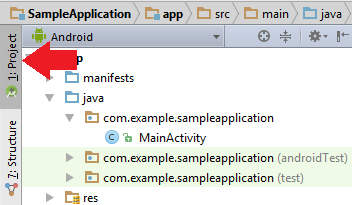
- Click the Project tab if not already selected.
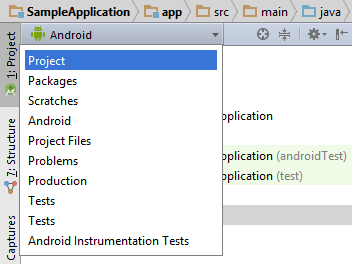
- Select the drop-down menu and click Project.
- Select the project, and then double-click build.gradle.
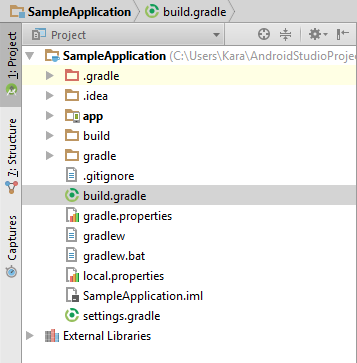
- Create a signing task in the project folder using the following lines:
task sign(type: Exec) {
executable "jarsigner"
args "=keystore", "NONE", "-storetype", "PKCS11", "-storepass", "2222",\
"home/user/ANdroidStudioProjects/SampleApplication/app/build/outputs/apk/app-release-unsigned.apk",\
"SampleKey"
}

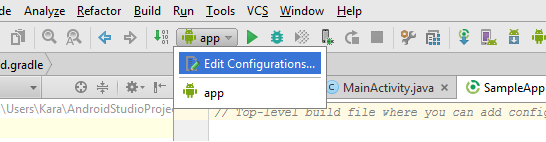
- From the Tool Bar, click “app”, and then select Edit Configurations.
- Select the plus sign and click Gradle.

- Name the new gradle, and select the “...” by Gradle Project.
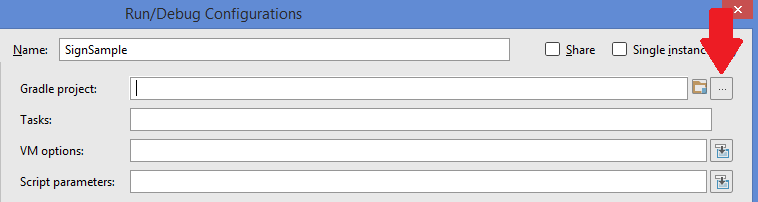
- Double-click build.gradle.

- Type “assembleRelease sign” in Tasks. When completed, the gradle configurations should look like this:
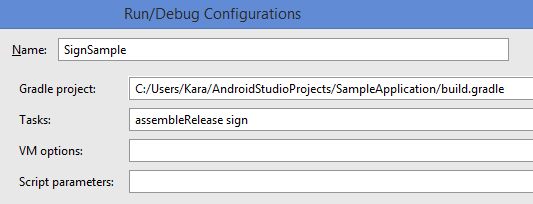
- Click Apply and Okay. Then run the program to sign the APK.
- Verify that the signing happened correctly. From a command prompt window, enter:
jarsigner -verify -verbose -certs <jarfilename>.jar
- if it is successful it will give the certificates used in signing the jar. It will also at the end state:
“jar verified”
- If it is unsuccessful the command will output:
“jar is unsigned. (signatures missing or not parsable)”
- if it is successful it will give the certificates used in signing the jar. It will also at the end state:
